

Genio Notes / Study Notes
Stay present in class with Focus Mode
Mark the moments that matter while you listen, without breaking focus. Your marks become jump points in your recording, so you know exactly where to go back to.
What is Focus Mode?
Focus Mode is a simplified recording view in Genio Notes, designed with learners in mind.
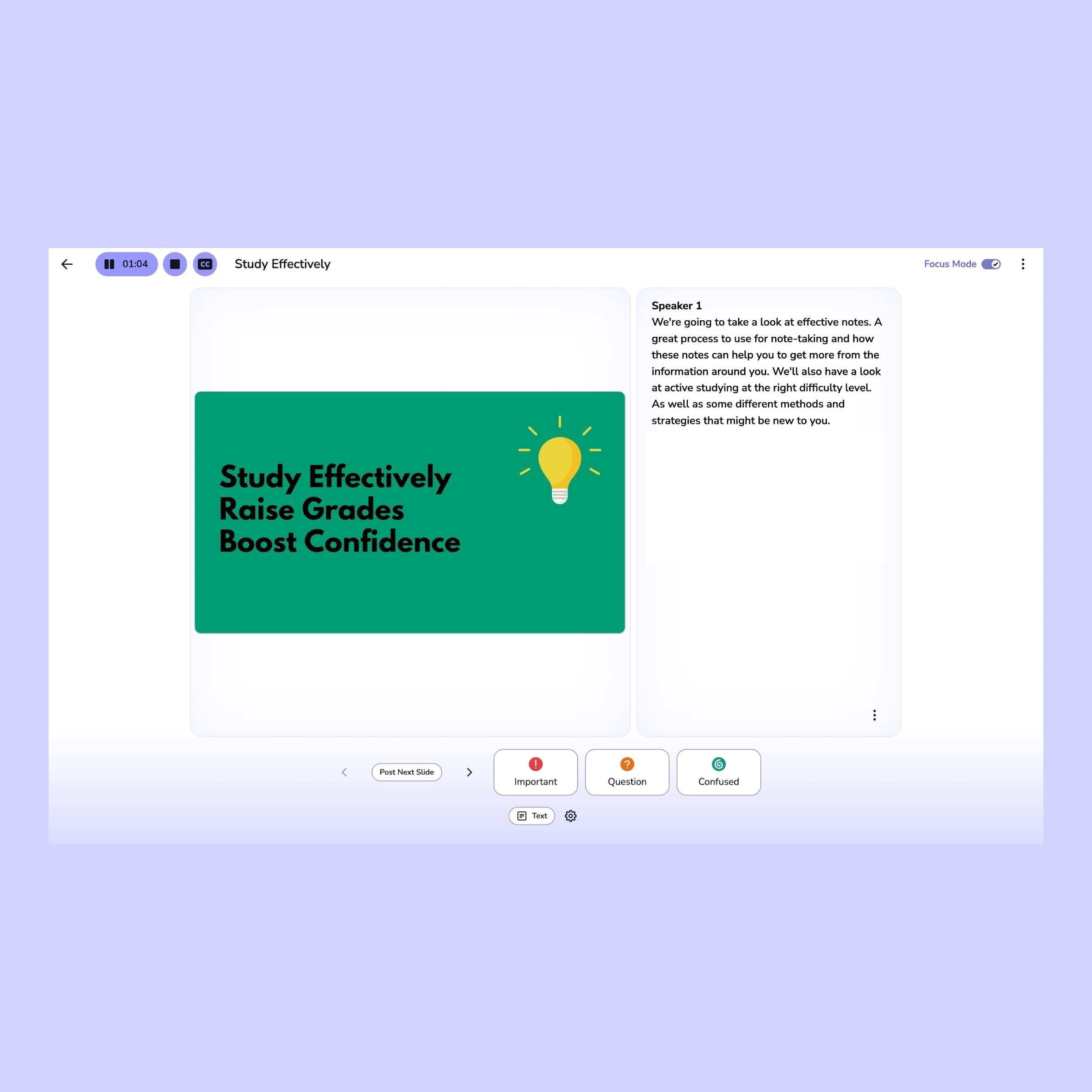
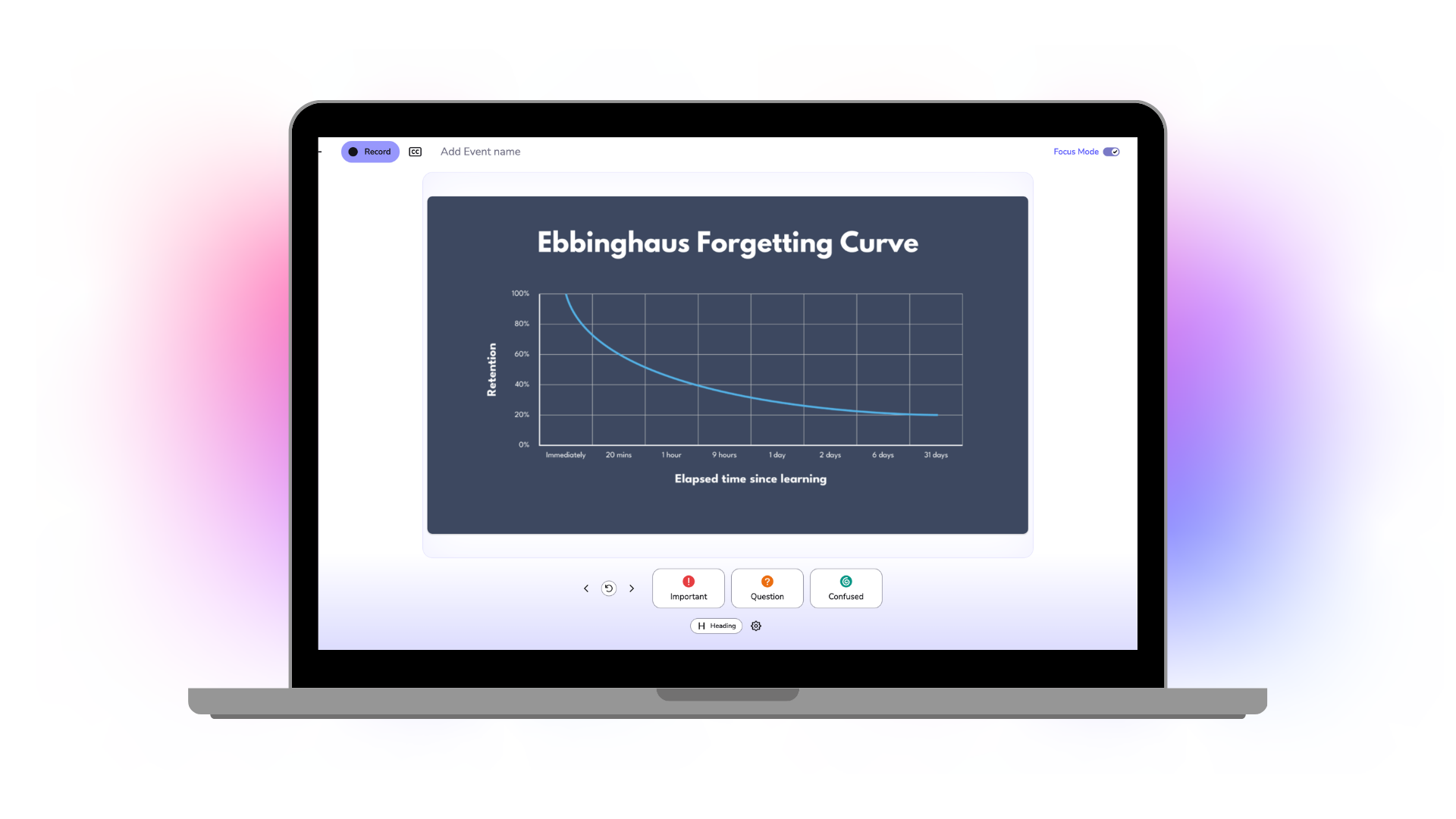
Listening and writing at the same time is hard work. Focus Mode replaces the standard event layout with a stripped-back screen built around one thing: marking moments as you listen. It takes the pressure off taking notes in the moment, so you can concentrate on what's being said.
How does it work?
Focus Mode is switched on by default for some learners. If Focus Mode is not switched on for you, here is what to do:
- Open an event in Genio Notes and turn on Focus Mode from the event toolbar. You can do this before you start recording, or while recording or paused.
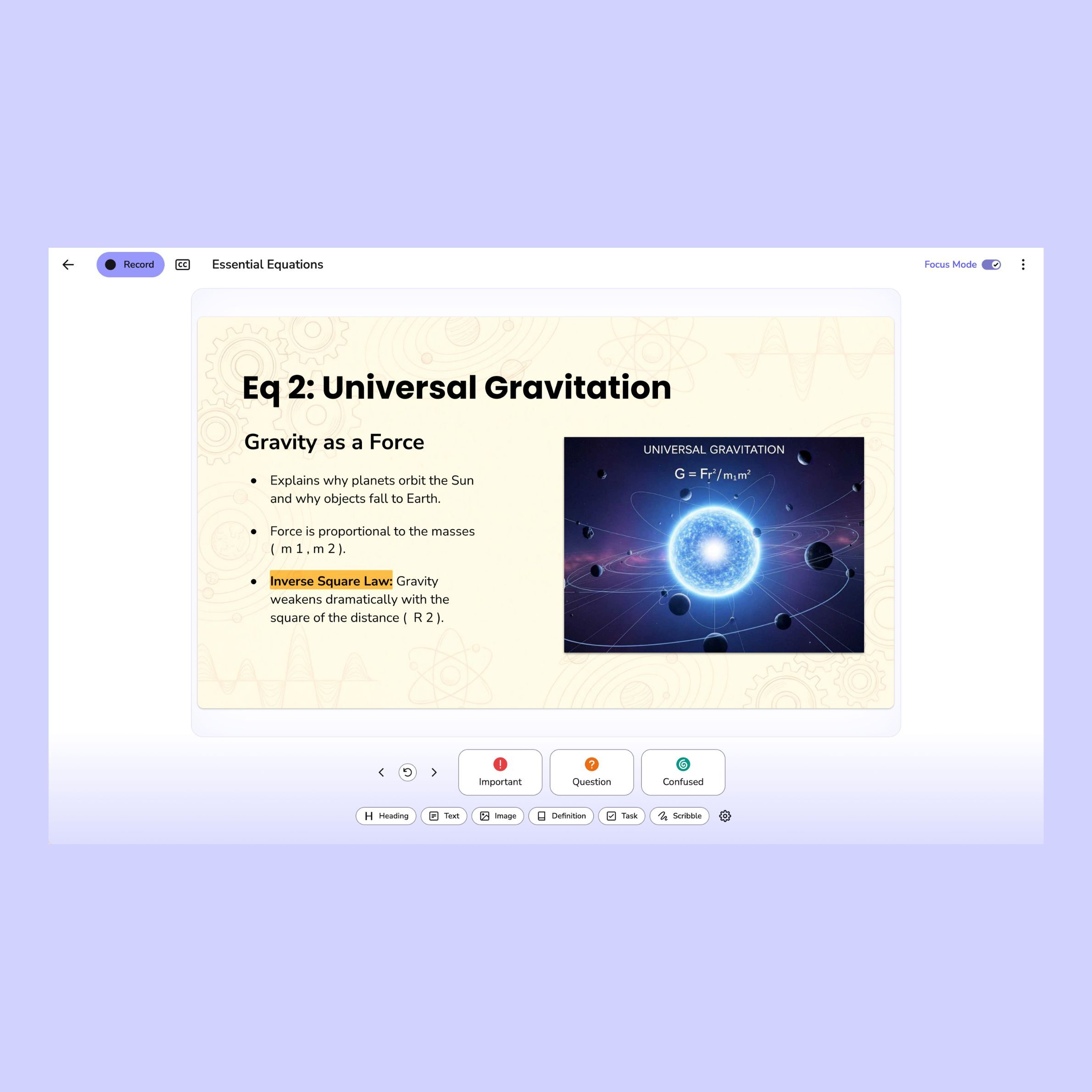
- Record your class. When something stands out, tap to mark it as important, confusing or a question. [Confirm mark labels: Confluence lists both "question" and "missed" as the third type]
- Stop the recording, and you'll return to the standard event view.
- Your marks are now timestamped points in your recording. Jump straight to each one to listen again, fill in your notes or follow up.
- Want Focus Mode on by default? Set your preference in Settings.
How does Focus Mode support learning?
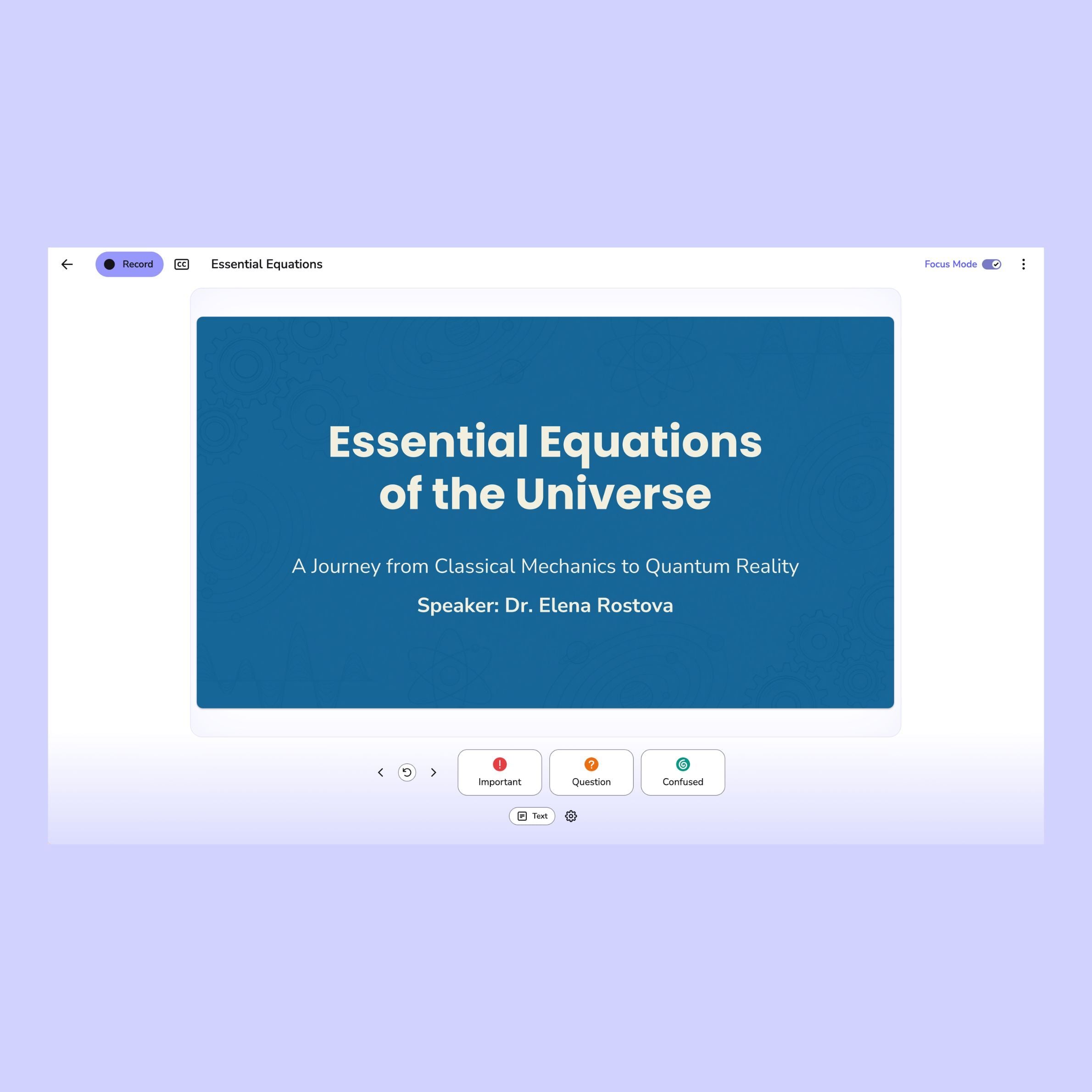
Mark moments with a single tap, without breaking focus or switching between tools.
Labels become instant jump points in your recording, so review is targeted and purposeful rather than a full replay.
Return directly to what you flagged, listen again, and close the gap - without the pressure of having to get it right the first time.
Genio supports learners at over 1,000 institutions globally

FAQs
Users on any Genio Notes institution or individual license will have access to Focus Mode.
Focus Mode is not currently enabled for all users automatically. To enable it, click the toggle to the right of your event title while inside an event, or go to 'Preferences' under your account.
The same toggle can also be used to switch Focus Mode off if not required.
Yes you can! You can still use all standard note taking functionality while in Focus Mode. You will see the notes once the recording has ended, to keep the screen clear and distraction-free while recording.
The 'Important, Confused and Question' labels are always on. However, Focus Mode can be personalized to add or remove other note taking options, such as Images, Tasks and Scribbles.
Focus Mode can be used on both our web app and our mobile app!
Please note that you must have the most recent mobile app to use Focus Mode, which you can find by searching 'Genio Notes' in the Apple App Store or Google Play Store.